kwizkid guide
First steps
Are you brand new to the kwizkid community? This guide will help you if you get stuck at one point or another!
Your first quiz
You can get started right away and create your quiz with the app. We have prepared various question types for you. Choose whether you want free text questions where your fellow players have to reveal their knowledge. Or would you prefer the simpler multiple-choice variant? How about estimating how many liters the Pacific has? Let your creativity run wild, kwizkid will take care of the rest!
You can also take a look at our tutorial quiz first and discover all the question types and options. Here you will also find hosting notes, which you can later incorporate into your quiz to make it easier for you to give a few tips and background information if your fellow players get stuck.
Create quiz
After you have successfully registered and logged into your account, we can get started. To create a quiz, enter the name for your quiz and confirm with “create”.
General settings
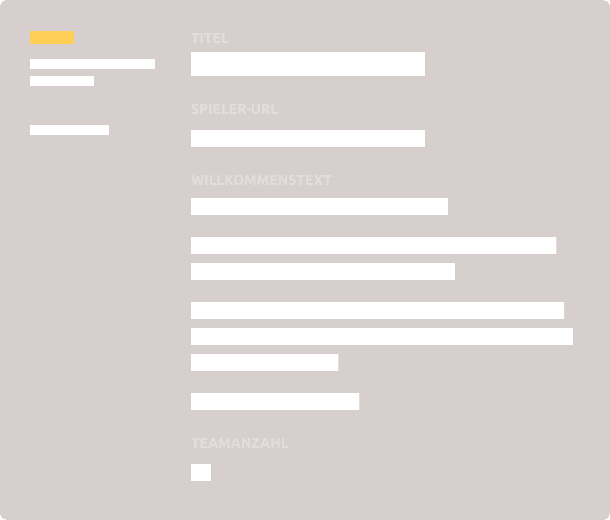
On the first page you will find general settings for your quiz. Here you can change the title, adjust the URL for the quiz or edit other options.
The welcome text in the player lobby is displayed for the players after the team registration, as well as on the presentation mode home page. You can also edit the welcome text on the team login page, which is accessible via the player URL. Usually only one player per team sees this text - the one who creates it.
You can find these texts and more options by clicking Advanced options.
Start date
You can also set a start date for your quiz. Then you can send the link for your quiz to all your players in advance and they will see an expiring countdown, so they know when it starts!
Number of teams
As another option you can limit the number of participating teams. In the free version of kwizkid, a maximum of 5 different teams can participate in a quiz. The number of players per team is not limited.
If you want more than 5 teams to participate in your quiz, you have the possibility to upgrade to the Single or Flatrate version. More information about prices can be found here: Prices and models
Content
To edit the content of your quiz just click on “Edit quiz content”.
Here you can add new questions, manage them and adjust the order.
Our question types
- Free text
- The most popular question form is completely open: Players type their answer into an input field. In our semi-automatic evaluation, you can later decide for yourself how strict you want to be.
- Multiple Choice
- You want to give your players a list of answer choices from which they should select the correct one? Then you need a multiple choice question.
- True / False
- With this question type, you create a list of options, each of which your players should choose whether it applies or not.
- Sort
- Here you give a list of options that your players then have to put in the right order.
- Estimate
- Your players must get as close as possible to a numerical value. You can also set a tolerance range for half and correct scores.
- Upload
- In this very special question type your players have to upload a picture as their answer. This can be a team photo, a drawing or something else.
- Free text / poem
- A short answer is not enough? With this question type, your players have more space to write - poems or stories, for example.
- Offline question
- For tasks completed outside the platform, you can create an offline question. You can then manually assign points for each team.
Question title
For all question types you can create your own title for your question in the “title” field.
Question text
Here you can add more task or help questions. Describe more about your question here and possibly upload pictures to either help your players or really get them thinking. You can upload pictures by clicking on the button or by drag`n drop.
Points
By default, there is one point per answer. So, for example, if you have a free text question with 3 answer fields, then there are 3 points for this question. But you can vary the number of points up or down.
Example: If the question is particularly difficult, you could give the question more points to increase the reward.
Change order
If you want to change the order of your questions you can simply click on “Change order”. Now you can simply drag and drop your questions to a new position.
Preview mode
Want to look through all the questions again beforehand? Then click on “Preview” and look at everything again before you start. Maybe you will find one or two improvements or a small spelling mistake.
Quiz Lobby
Have you prepared your questions and answers? Then let's get started!
Overview
Everything is ready, now you just need to invite your fellow players. You can do this easily by clicking on the “Invite players” button. The link to play along will end up in your clipboard and you can then share it via Messenger, social media or in your stream chat.
Registrations and estimated duration
As the host, you can also see how many and which teams have already registered. You will also receive an estimated duration of how long your quiz round will take based on our experience. Depending on this, you can add more questions or work out how you can moderate your questions more quickly.
Everything ready? All teams ready? Here we go!
As soon as you press “Start quiz”, the first question will be visible to all players and your quiz event will begin!
Moderation
Show off your skills and provide your fellow players with great entertainment!
Release question
Your quiz is running and you can unlock the questions one by one. You always see the current question, but the answers are always automatically hidden. By clicking on the eye, you can make the answers visible to you only. If you have moved a question too far, you can hide the questions again individually by clicking on the “Release question” button.
Who comes too late ...
... may of course still participate. You can copy the link to the running quiz into your clipboard, if you click on the button “URL for players” above. Just send this link to the new players, so they can participate. By the way, there is no point deduction.
End quiz
When all questions have been asked and all answers have been given - or you want to close the round - you can end the quiz. You do this with “Start evaluation”. As soon as this button is pressed, the participants can't give any more answers.
Special Events
Drinking Round: Extremely popular in the pub and with the presentation: The “Drinking Round!”. If you press this button a signal with “Time to get some drinks” appears on the players devices and in the presentation mode. Now all players can celebrate together.
More events: We are currently working on more special events to make the quiz experience even more interactive and exciting for everyone! Do you have any suggestions or ideas? Then feel free to contact us! Here is the
Evaluation
The players have answered all the questions? Then it's time to evaluate the answers. Just click on “Close quiz” and start the evaluation.
Better together
Before you start with the evaluation, you also have the possibility to copy the evaluation link and to share it with a helper. Just click on “Share evaluation link”, the link is now in your clipboard. You can then send this to your helpers to evaluate the entire quiz together.
The evaluation can be done at any time, even while the quiz is still running. Just click on the magnifying glass in the timeline and go to the in-game evaluation. However, as long as you do not click on “Close quiz”, the quiz will continue to run normally and each participant can continue to submit and enter answers.

If you have actively started the evaluation, you now have the option of giving the players an insight into the evaluation and points already given. In addition, both you as the host and the players can see what percentage of the answers have already been evaluated.
Evaluation of the questions
For each answer you have the possibility to assign full, half or no points. Answers that completely match your predefined answer will automatically be scored as correct. All other answers will be manually checked by you. If several teams give the same answer, the answers will be grouped. Thus, it must be corrected only once. If a partial answer of a question is completely evaluated, a green check mark appears at the top right edge of the answer.
Different views
- The teams have not (yet) given an answer
- 2 teams have entered answers
- Evaluation completed
If the whole question with all partial answers is evaluated, the whole question is highlighted in green. As soon as you have evaluated all questions, you will receive a message that 100% have been evaluated. You can now start the award ceremony.
Award ceremony
We are in the final stage of the quiz, the award ceremony.
Should you have not yet released the scoring of the answers for the players, you have at this point again the possibility. Just click on “Reveal answers to players”.
Evaluation categories
The result phase is divided into up to three categories: Knowledge, Music and Overall. If you have not added any song questions to your questions, you will of course only have the Knowledge category here. Above the respective category you see the total points to be awarded.
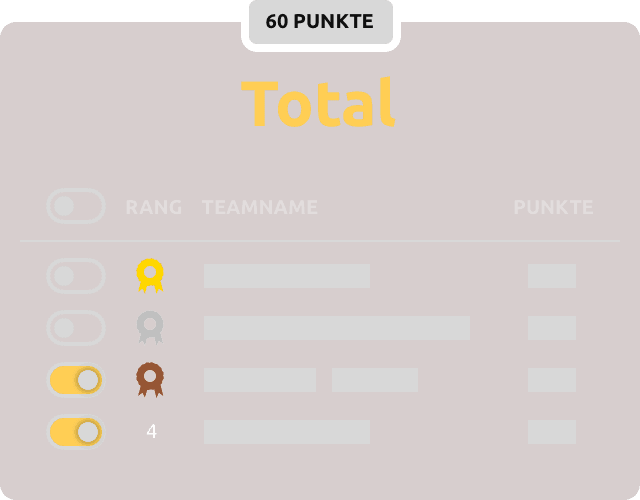
You can make the ranking of the respective teams visible per team or for all together. For this there is a toggle button in front of each team name or in the table header. As soon as this was activated, is visible for all players, on which place the respective team has landed.